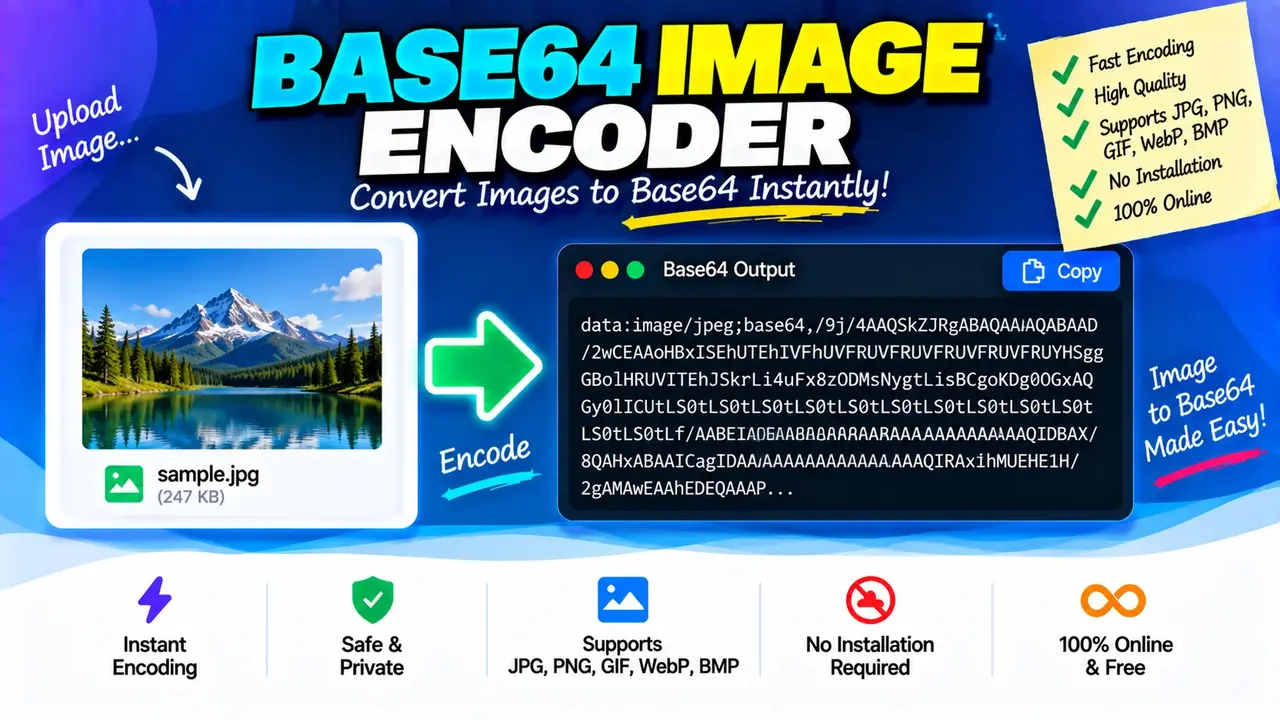
Online Base64 Image Encoder / decoder
TL;DR Summary
Base64 Image Encoder / decoder converts image data between an image-friendly Base64 representation and decoded image data, making it useful for working with images in HTML, CSS, JSON, APIs, and development projects. The supplied tool information does not document how data is processed or stored, so avoid entering sensitive information unless the page clearly explains its data-handling practices.
About This Tool
The Base64 Image Encoder / decoder is a browser-based utility for working with images and Base64 data. Base64 is a text representation of binary data. It is commonly used when an image needs to be represented as text instead of being handled only as a traditional image file.
This can be useful for developers, web designers, students, testers, and anyone who needs to convert image data into a Base64 format or work with Base64 image data. The supplied tool artwork also presents Base64 encoding for text, files, images, JSON, and other data types, with a plain-text input area and Base64 output. :contentReference[oaicite:1]{index=1}
For an image workflow, the basic task is straightforward: provide the image or relevant image data for encoding, or provide Base64 image data when decoding is needed. The resulting representation can then be copied and used in a compatible application, development environment, document, or test workflow.
What Is Base64 Image Encoding?
Base64 encoding changes binary information into a text string made from a limited set of characters. An image normally consists of binary bytes. Base64 represents those bytes as text so that systems designed to handle text can carry the image data.
A Base64 image is often used with a data: URL. A typical structure looks like this:
data:image/png;base64,[Base64_DATA]The MIME type identifies the image format, such as image/png, while the Base64 portion contains the encoded image bytes. The exact output format can depend on the input and the way the encoded data is intended to be used.
What This Tool Is Useful For
- Converting an image into Base64 text for development and testing.
- Working with Base64 image data in HTML and CSS.
- Preparing image data for systems that accept text-based values.
- Inspecting or copying Base64 representations of image data.
- Decoding Base64 image data back into image data when supported by the tool.
- Testing image-related API, JSON, or web-development workflows.
Inputs and Outputs
The main input for an image encoding workflow is image data or an image file. The output is a Base64 text representation of that data. For a decoding workflow, the input is Base64 image data and the expected result is decoded image data that can represent the original image.
| Operation | Typical Input | Typical Output |
|---|---|---|
| Encode | Image file or image data | Base64 text |
| Decode | Base64 image data | Decoded image data |
The supplied materials do not document a complete list of accepted file extensions, maximum file sizes, exact buttons, or browser-side processing behavior. Those details should therefore be confirmed from the live tool interface rather than assumed.
How to Use
- Step 1: Open the Base64 Image Encoder / decoder and choose the image encoding or decoding task you need.
- Step 2: For encoding, provide the image or image data you want to convert. For decoding, provide the Base64 image data you want to convert back.
- Step 3: Run the selected conversion using the control provided by the tool.
- Step 4: Review the generated Base64 text or decoded image data.
- Step 5: Copy or use the resulting data in your HTML, CSS, JSON, API test, development project, or other compatible workflow.
Technical Explanation
Base64 encoding works by representing groups of binary bits with Base64 characters. In the standard Base64 scheme, every group of three input bytes, containing 24 bits, is represented by four Base64 characters, each representing 6 bits.
The standard relationship is:
3 bytes = 24 bits
24 bits ÷ 6 bits per Base64 character = 4 characters
When the number of input bytes is not evenly divisible by three, Base64 uses padding, normally represented by one or two = characters. This is why an encoded value may end with = or ==.
For an image, the encoded content represents the image's underlying bytes. A complete data URL can also include the image MIME type and the Base64 indicator:
data:[MIME_TYPE];base64,[ENCODED_DATA]For example, a PNG image can use image/png, while a JPEG image can use image/jpeg. The Base64 conversion itself does not change the meaning of the original bytes. It changes how those bytes are represented.
Base64 also adds overhead. Three original bytes become four Base64 characters before considering any surrounding data-URL text. In practical terms, Base64-encoded data is therefore larger than the original binary data. Base64 is useful when text transport or embedding is required, but it is not an image compression method.
Simple Example
Consider the plain text example shown in the supplied tool artwork:
Hello, World!Its standard Base64 representation is:
SGVsbG8sIFdvcmxkIQ==The same basic encoding principle applies to an image, except the input consists of binary image bytes rather than ordinary text. The resulting Base64 string is normally much longer because an image contains substantially more data.
Base64 Image Data in Web Development
One common use is embedding a small image directly into an HTML or CSS resource with a data URL. For example, an image source may use a structure such as:
<img src="data:image/png;base64,[ENCODED_DATA]" alt="Example">This approach can be useful for certain self-contained examples, prototypes, testing, or data-transfer scenarios. It can also make source code or text payloads much larger, so Base64 should not automatically be treated as a replacement for normal image files.
Preset Examples / Quick Reference
| Need | Input | Result |
|---|---|---|
| Encode an image | Image data | Base64 representation |
| Decode an image | Base64 image data | Decoded image data |
| Embed an image in HTML | Base64 image data | Potential data:image/...;base64,... value |
| Prepare text-based image data | Image bytes | Text-compatible Base64 data |
Why Use This Base64 Image Encoder / decoder & How Our Base64 Image Encoder / decoder Beats the Competition
The practical difference between this tool and other ways of handling Base64 data is mainly the workflow involved. The Toolhox utility is intended as a direct web-based conversion tool, while manual methods, spreadsheets, and professional development software require different levels of setup and technical knowledge. The comparison below describes those general trade-offs without making unsupported claims about competing products.
| Method | Ease of Use | Calculation Speed | Best For | Limitations |
|---|---|---|---|---|
| Toolhox Base64 Image Encoder / decoder | Direct web-based workflow | Designed for interactive conversion | Quick Base64 image conversion and testing | Exact supported formats and limits depend on the tool implementation |
| Manual Base64 conversion | Requires technical knowledge | Depends on the method used | Learning or custom development workflows | More manual steps and greater chance of input or formatting mistakes |
| Spreadsheet calculation | Not designed specifically for image Base64 conversion | Depends on formulas or extensions | Structured text and numeric data workflows | Image Base64 handling may require additional tooling |
| Professional development software | Requires setup and technical knowledge | Depends on the software and workflow | Automated or large-scale development tasks | More setup than a simple conversion workflow |
Assumptions and Limitations
Base64 encoding is a representation change, not compression. The encoded result can be larger than the original image data. Users should consider this when embedding Base64 images in websites, documents, APIs, or other payloads.
The tool's supplied information does not specify maximum file size, supported image extensions, exact output limits, server-side handling, storage duration, or other implementation details. Those items should not be assumed from the name of the tool alone.
Users should also verify that the decoded result is the expected image format and that the Base64 input is complete. Invalid, truncated, or incorrectly formatted Base64 data may not decode correctly.
Do not rely on a Base64 conversion tool alone for sensitive or regulated data-handling decisions. If an image contains confidential, personal, financial, medical, or otherwise sensitive information, review the page's stated data-handling practices before submitting it.
For normal development and testing, the tool can provide a practical way to work with Base64 image representations without manually performing the encoding process.