ComfyUI Workflow to API
Free ComfyUI workflow to API converter. Paste a ComfyUI UI workflow (0.4 or 1.0) or API prompt JSON and get a deterministic, flat API-format prompt with diagnostics and stats. 100% private, runs in your browser.
// API JSON appears here.
100% private — everything runs in your browser. Your workflow never leaves this page.
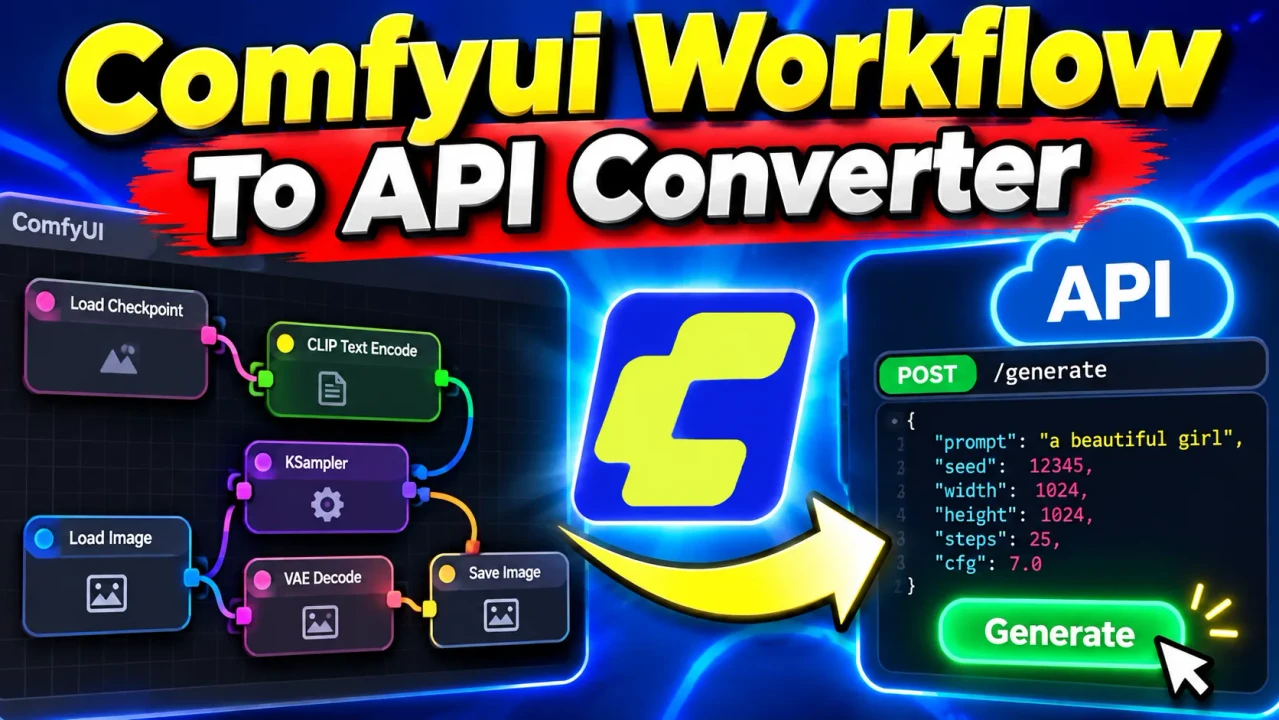
Comfyui Workflow To Api Converter
TL;DR Summary
Comfyui Workflow To Api Converter helps convert a ComfyUI workflow into an API-oriented format that can be used as a starting point for API-based workflow integration. The supplied tool information does not confirm server-side processing, local-only processing, storage behavior, or a specific API schema, so users should review the generated output before using it in an application and avoid entering sensitive information unless the page explains how submitted data is handled.
About This Tool
Comfyui Workflow To Api Converter is a developer-focused conversion tool for users working with ComfyUI workflows and API-based automation. Its main purpose is to take a ComfyUI workflow representation and turn it into an API-oriented representation, reducing the need to manually restructure workflow data when preparing it for programmatic use.
ComfyUI workflows describe a node-based process. A workflow can contain nodes, connections, settings, and other information that defines how an image-generation or processing pipeline is assembled. An API request usually needs that workflow information arranged in a format that software can send and work with. This converter is intended to help bridge those two representations.
The primary input is a ComfyUI workflow. Depending on the workflow export used with the tool, that input may be provided as structured workflow data such as JSON. The supplied information does not document additional required fields, optional settings, supported file types, or configurable conversion options, so users should follow the input instructions displayed by the tool itself.
The output is an API-oriented version of the supplied workflow. The exact fields, property names, nesting, and formatting depend on the workflow data accepted by the converter and the conversion rules implemented by the page. The supplied source does not provide enough information to state that the tool supports every ComfyUI workflow format or every version of ComfyUI.
Who Can Use It?
This tool is most relevant to developers, automation builders, technical artists, and ComfyUI users who want to move from a manually designed workflow toward programmatic use. It can also be useful when reviewing how a visual node workflow can be represented as structured API data.
For a developer, the main benefit is reduced manual restructuring. Instead of copying workflow information into an API structure by hand, the converter provides a dedicated place to perform the conversion. For a ComfyUI user who is less familiar with API request structures, it can also provide a more direct starting point for understanding the relationship between a visual workflow and structured request data.
How to Use
- Step 1: Export or obtain the ComfyUI workflow data you want to convert, using the workflow format accepted by the tool.
- Step 2: Enter or paste the workflow data into the converter's input area.
- Step 3: Check that the workflow content is complete and that the input is valid for the tool.
- Step 4: Run the conversion using the control provided by the tool.
- Step 5: Review the generated API-oriented output and confirm that the nodes, values, and required workflow information are represented as expected.
- Step 6: Adapt the generated output to the API, application, or automation environment where you plan to use it.
Technical Explanation
This is a converter rather than a mathematical calculator, so there is no numerical formula such as multiplication, division, or unit conversion to apply. The underlying operation is structural transformation: workflow data is read from the supplied input and represented in an API-oriented structure.
A simplified view of the process is:
ComfyUI workflow data → conversion rules → API-oriented workflow data
The conversion should be understood as a format transformation, not as a change to the creative logic of the workflow. The original nodes, values, relationships, and other supported workflow information provide the source material for the generated representation. The exact transformation rules are determined by the tool's implementation.
The supplied source does not document a complete field-by-field mapping or a guaranteed API schema. For that reason, users should not assume that every property in every ComfyUI workflow will be transformed in exactly the same way. The generated result should be inspected before it is used in production code.
Input and Output
| Item | Purpose |
|---|---|
| ComfyUI workflow | Source workflow data supplied to the converter. |
| Conversion process | Transforms the supported workflow representation into an API-oriented structure. |
| API-oriented output | Structured output that can serve as a starting point for programmatic workflow use. |
Preset Examples / Quick Reference
A typical use case starts with a ComfyUI workflow that has already been created and exported. The workflow is supplied to the converter, the conversion is run, and the resulting API-oriented data is reviewed. The important point is that the source workflow remains the basis for the generated output.
| Task | Input | Expected Action |
|---|---|---|
| Prepare a workflow for API use | ComfyUI workflow data | Convert the workflow to an API-oriented representation. |
| Review generated structure | Converted output | Check nodes, values, connections, and required fields. |
| Integrate with software | Reviewed API-oriented output | Adapt the output to the target application or API environment. |
Why Use This Comfyui Workflow To Api Converter & How Our Comfyui Workflow To Api Converter Beats the Competition
The practical difference between this tool and other approaches is the workflow involved. Manual conversion requires the user to understand the source workflow and manually create the required API representation. A spreadsheet can help organize structured information but is not a purpose-built workflow conversion method. Professional development tools can provide much broader control, but they may require more setup and technical work.
| Method | Ease of Use | Calculation Speed | Best For | Limitations |
|---|---|---|---|---|
| Toolhox Comfyui Workflow To Api Converter | Purpose-built conversion workflow | Depends on the supplied workflow and page implementation | Users who need to transform supported ComfyUI workflow data into an API-oriented format | Generated output should be reviewed; supported formats and exact field mappings are not fully documented in the supplied information. |
| Manual conversion | Requires technical knowledge | Depends on the user and workflow size | Custom transformations or unusual API requirements | More opportunity for manual formatting errors and repetitive work. |
| Spreadsheet | Familiar for tabular data | Depends on spreadsheet setup | Reviewing or organizing structured values | Not specifically designed to convert ComfyUI workflow structures into API data. |
| Professional development software | Requires programming knowledge | Depends on implementation | Advanced, custom integrations | Requires development work and may be more involved than a focused conversion task. |
Assumptions and Limitations
The converter should be treated as a workflow-format transformation tool. Its usefulness depends on the structure and validity of the input workflow and on what the implementation supports. The supplied source does not establish that the converter supports every ComfyUI workflow export, every node type, every custom node, or every API implementation.
Users should review generated output before placing it into an application or automated process. A workflow can contain settings or references that have meaning only in a particular ComfyUI environment. External models, custom nodes, file paths, resources, or other dependencies may still need to be configured separately.
The converter does not, based on the supplied information, guarantee that an output is ready for a particular third-party API without further review. API requirements can vary by endpoint and implementation. If an application has strict request requirements, validate the generated structure against the documentation for the target API.
Privacy behavior is not specified in the supplied tool information. Do not assume that submitted workflow data is processed only in your browser, is never uploaded, or is never stored. Avoid including sensitive information unless the tool's own page clearly explains how that information is handled.
For production integrations, test the converted workflow with non-sensitive data first. Check the generated structure, confirm that required values are present, and verify that the target environment supports the workflow components being used.
When to Use It
Use Comfyui Workflow To Api Converter when you already have a ComfyUI workflow and need an API-oriented representation as a starting point for programmatic use. It is especially useful when the alternative is manually restructuring workflow information.
Do not treat the generated result as a substitute for reviewing API documentation or testing the resulting request. If your workflow uses custom nodes or unusual dependencies, additional manual work may be necessary.